
|
|
Description
The limit system able you to define a limit through different parameters, so you can choose your period (like Cart, Daily, Weekly etc...) and the limit type (like Quantity, Price, Weight) for each limit, plus you can limit different order status type.
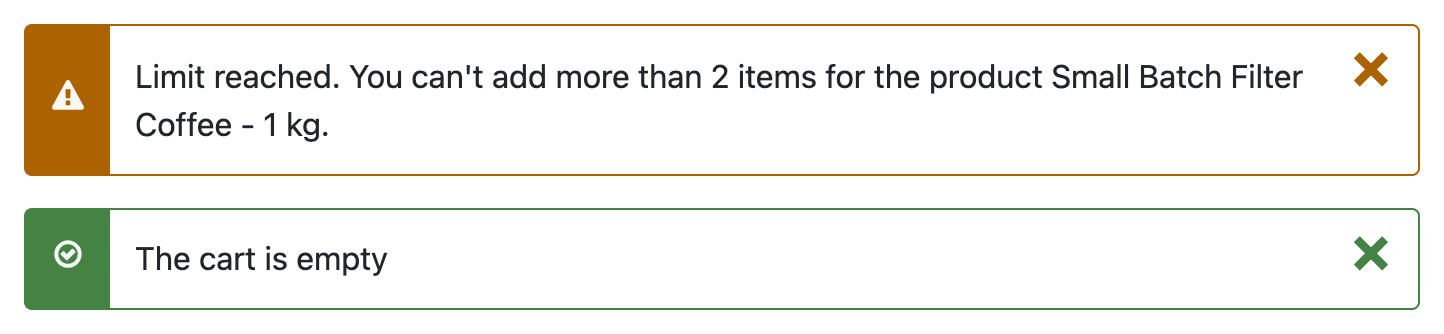
When the limit is reached, a message will be display to inform the customer, and the quantity is reduced or the product is not added to the cart.
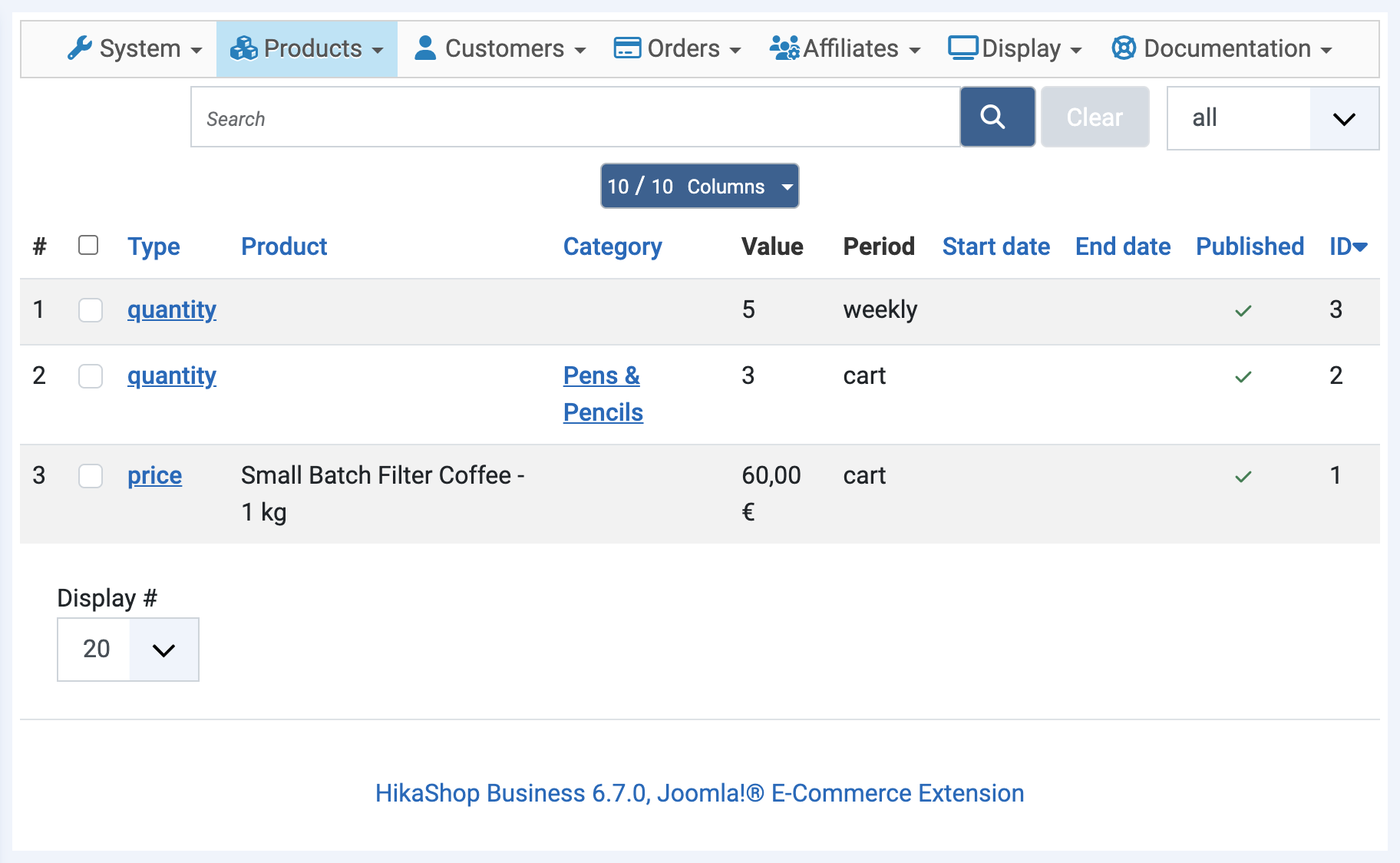
First, to find the Limit settings you must go to HikaShop (in components) and open the Products menu, then Limit.
Now, you're in the Limit list. Click on New to create a limit.
Settings
You have different possible settings in this page to define your limit. The left block, Main information, defines what is limited:
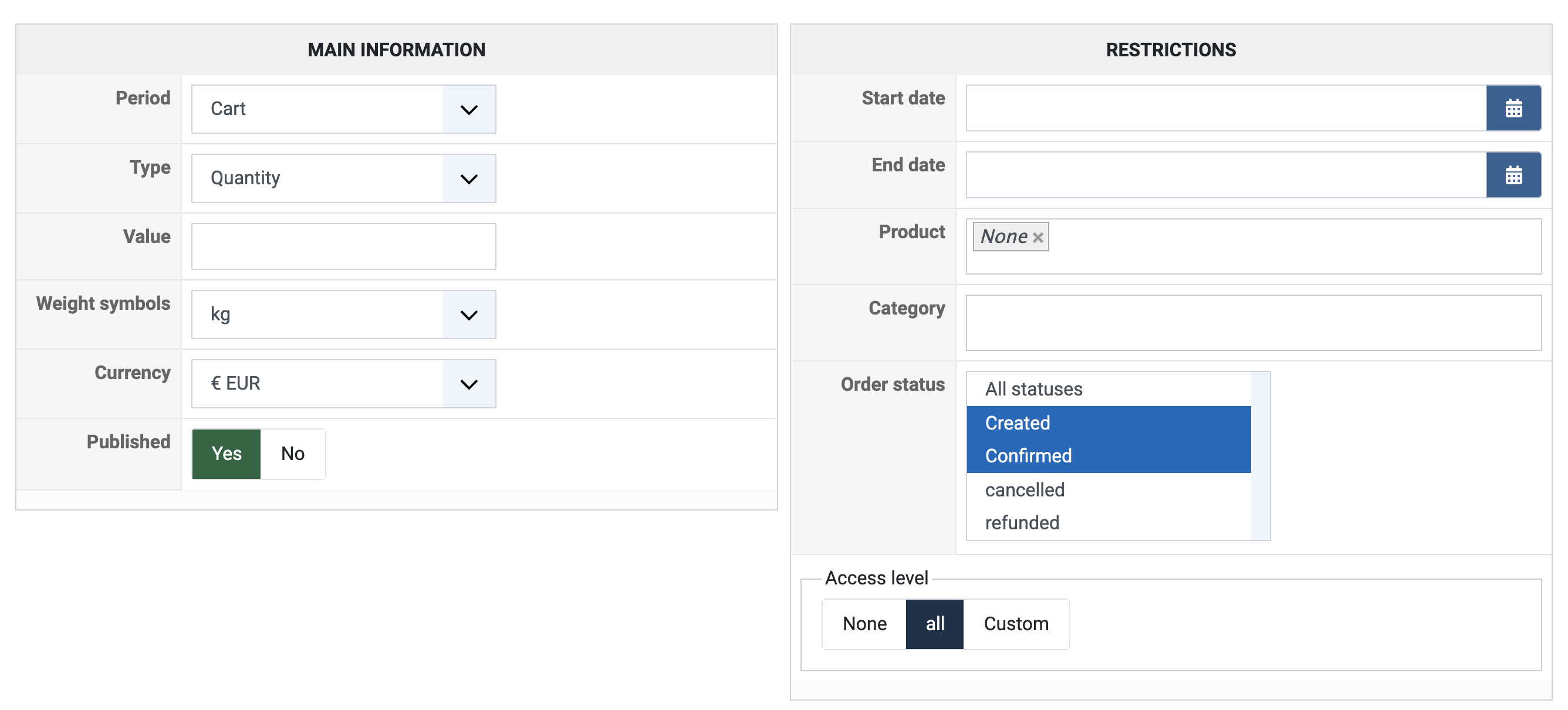
- Period : You can define on which period is base your limit, you can pick : Cart, Daily, Weekly, Monthly, Quarterly, Yearly and Forever.
- Type : Choose on which eligibility criterium will be define your limit, here you have three choices : Quantity, Price and Weight.
- Value : Just type the value you want to set, for example if you picked "Quantity Type", the number of products, or if you picked "Price Type", the price without currency symbol.
- Weight symbols : If you have picked "Weight Type" you can define symbols link to this Type.
- Currency : Same idea than Weight symbols but if you picked the "Price Type".
- Published : As usual, this is for turn On/Yes or turn Off/no the limit.
The right block, Restrictions, defines when and on what the limit is used:
- Start date : Here you can choose the start date to enable the limit.
- End date : Same idea than above but to end the limit process.
Note : If you let these 2 dates parameters empty, the limit will be use now and until the limit is unpublished.
- Product : Define on which product will be used the limit.
- Category : Same idea than above but to select one or several categories.
Note : If you let these 2 parameters empty, the limit will be use on all products and all category.
Note : Thanks to the Namebox system, for select a product or a Category, you can select just by clicking in the input, OR by typing the product name!
WARNING : If you select a category, which include some sub-category the limit will not be effective on these sub-categories products!
To affect sub-category products, you must select directly this sub-category (the category field accepts several categories, so you can select both the category and its sub-categories in one limit).
- Order status : Define the order status limit to : all statuses, or one or several of the order statuses of your shop (created, confirmed, cancelled, refunded, shipped...). Hold the Ctrl key to select several of them.
- Access level : With the Business edition, restrict the limit to some user groups.
Note : A little more explanation, the aim is for example, if you set on a long period (start with daily to forever) you can authorize just 5 quantity products with the order status "shipped".
So, if the customer order 5 products, he can order other products until the first order reach the order status "shipped"!
Note : To use the order status limit, the period can't be set on "cart", or the order status limit will be only on the created order status.
Concrete Examples
We will now see some concretes examples of Limit settings.
Price Example
Here we have set "Period" on Cart, "Type" on Price and "Value" on 60, which means that the customer can only add for 60 Euros per Cart.
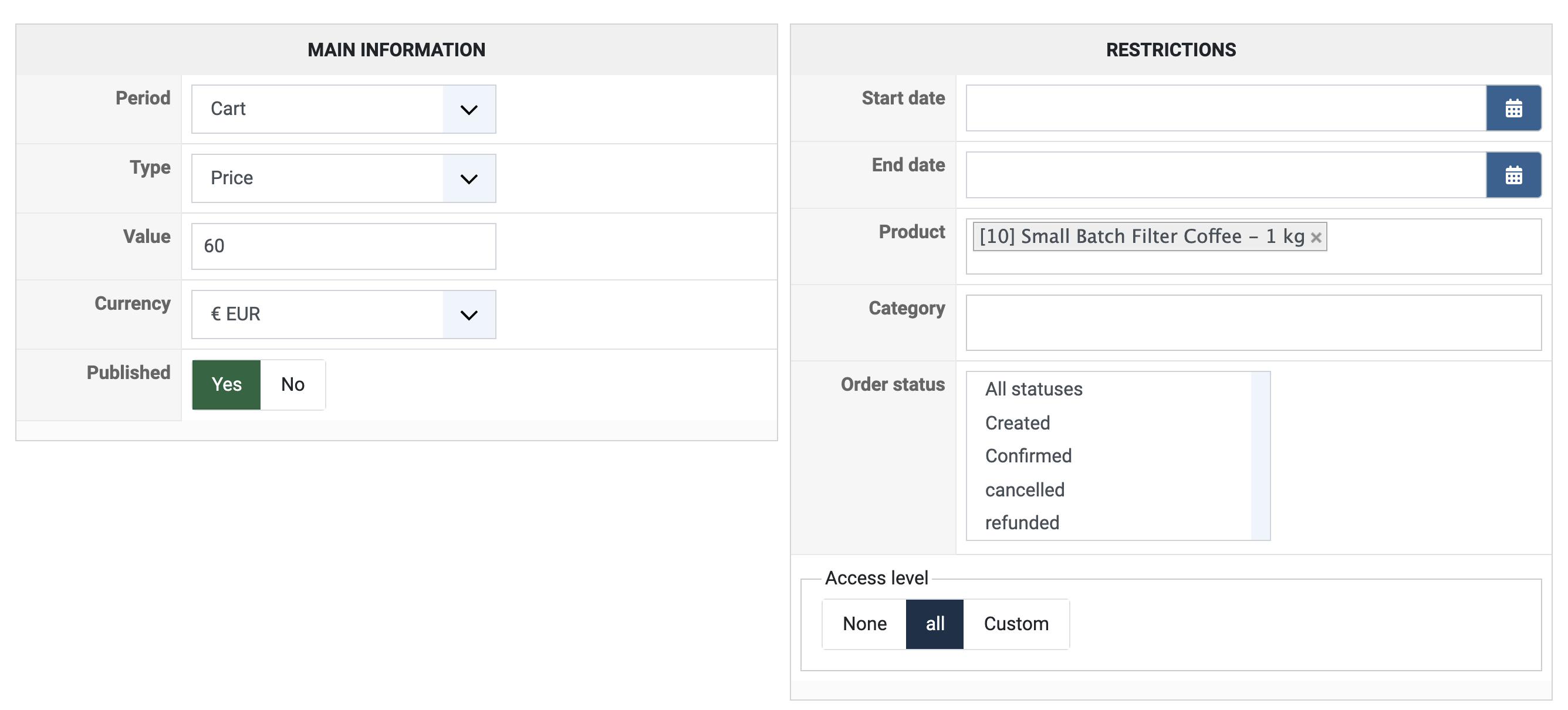
BUT the limit is set just on a product, here "Small Batch Filter Coffee - 1 kg" (25,64 Euros each), so it's impossible for the customer to buy for more than 60 Euros of this product: when he tries to add 3 of them (76,92 Euros), a message tells him he can't add more than 2 items.
Quantity Example
Here we have set "Period" on Cart, "Type" on Quantity and "Value" on 3, which means that the customer can only add 3 products from this category per Cart.
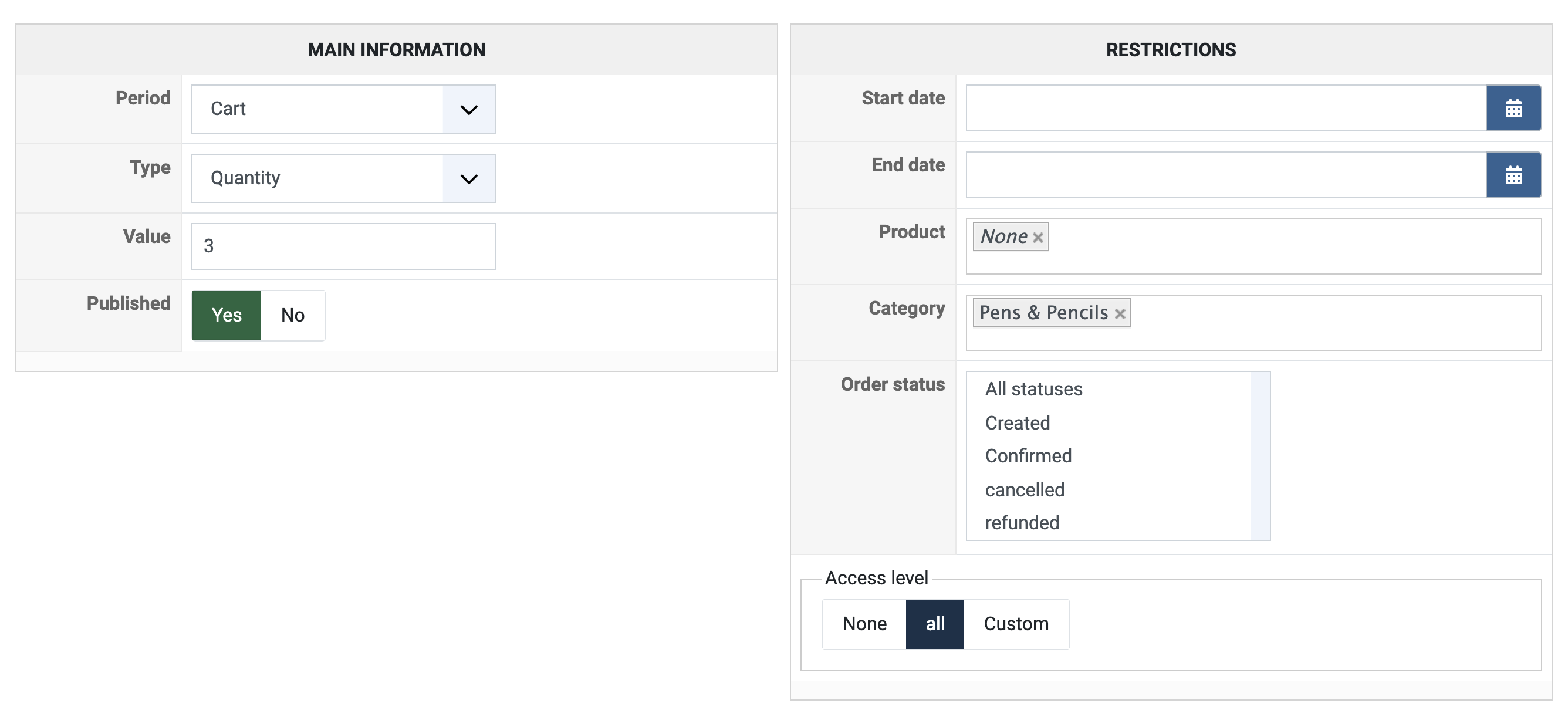
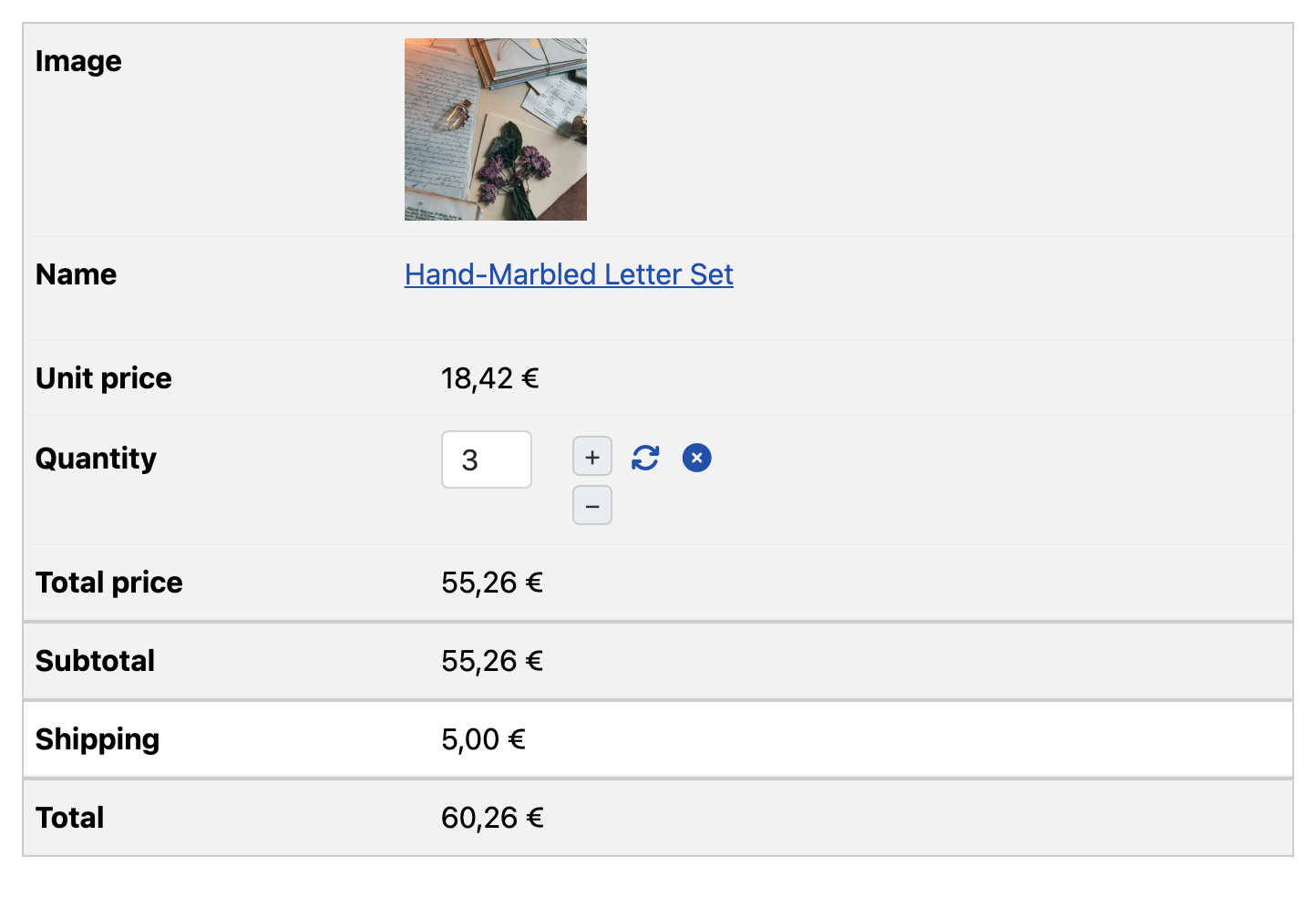
BUT the limit is set on a category, here "Pens & Pencils", so when the customer tries to add 4 products of this category, the quantity in the cart is limited to 3.
Period and Order Status Example
Here we have set "Period" on Weekly, "Type" on Quantity and "Value" on 5, with the order status "Created", which means that the customer can only have 5 products in created orders per week. As neither a product nor a category is selected, the limit applies to all the products.
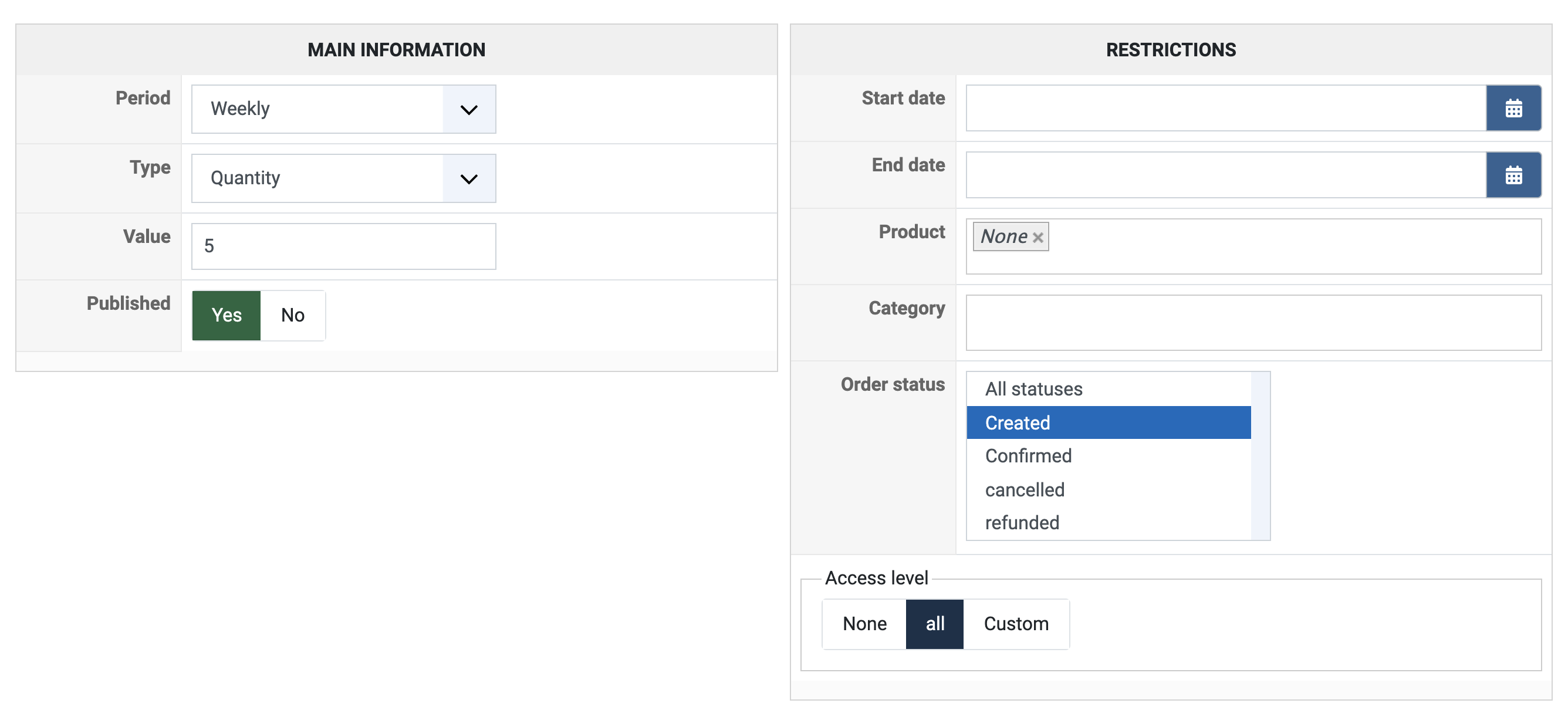
If the customer has already ordered 3 products this week, he can only add 2 more products to his cart.